
Opacity & saturation hex calculator
Move exact colors between your apps.
A color set at reduced opacity is not the hex you typed. hexIT computes the true, flattened value so the color you paste into the next app matches the one you see, to the digit.
The color you see is not the color you typed
Opacity and saturation change the real hex.
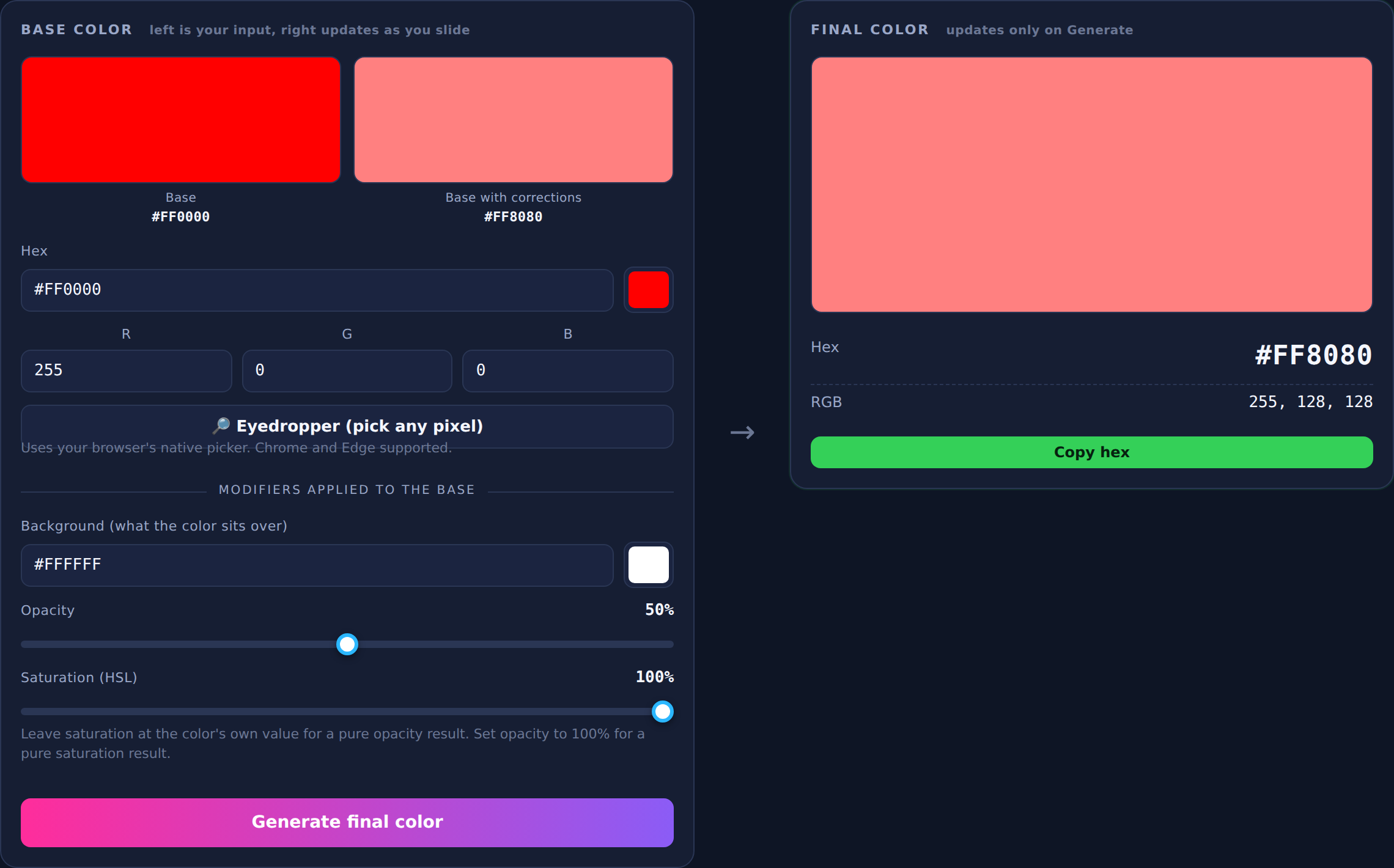
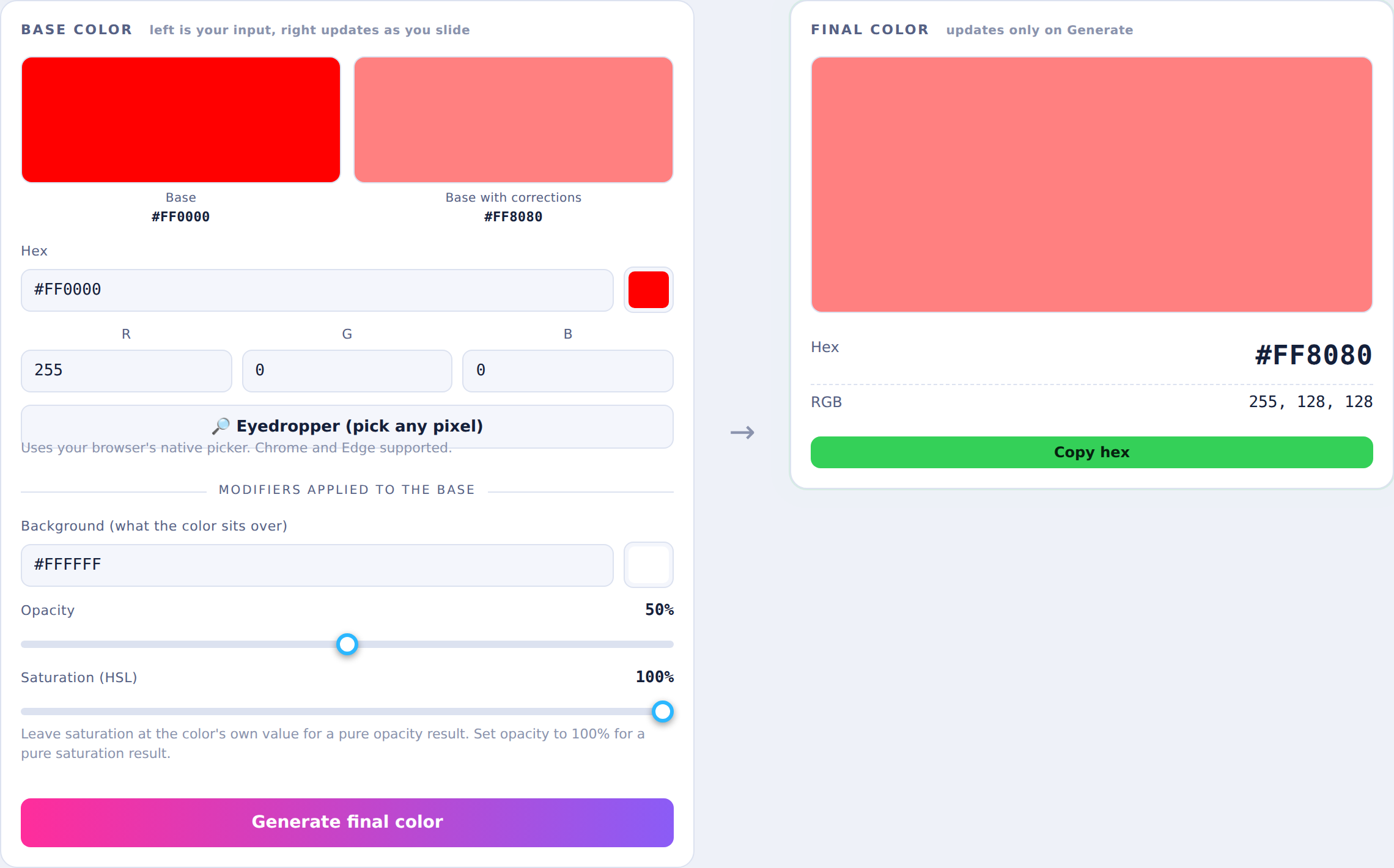
Drop a swatch at 60% opacity over a white sheet and the pixels are no longer your original hex. They are a blend of the swatch and the background. Eyeball it and you get close. You do not get exact.
hexIT does the blend math for you. Give it the base color, the background it sits over, the opacity, and the saturation. It returns the precise hex and RGB of the result, ready to paste anywhere.
How it works
Three steps to an exact match.
Set your base color
Type a hex or RGB value, use the color picker, or grab any pixel on screen with the native eyedropper in Chrome and Edge.
Apply the corrections
Choose the background the color sits over, then set opacity and saturation. The preview swatch updates live as you slide.
Generate and copy
Press Generate for the final, locked-in hex and RGB. One click copies the hex so you can paste it straight into the next app.
Exact output
The real hex, not a guess
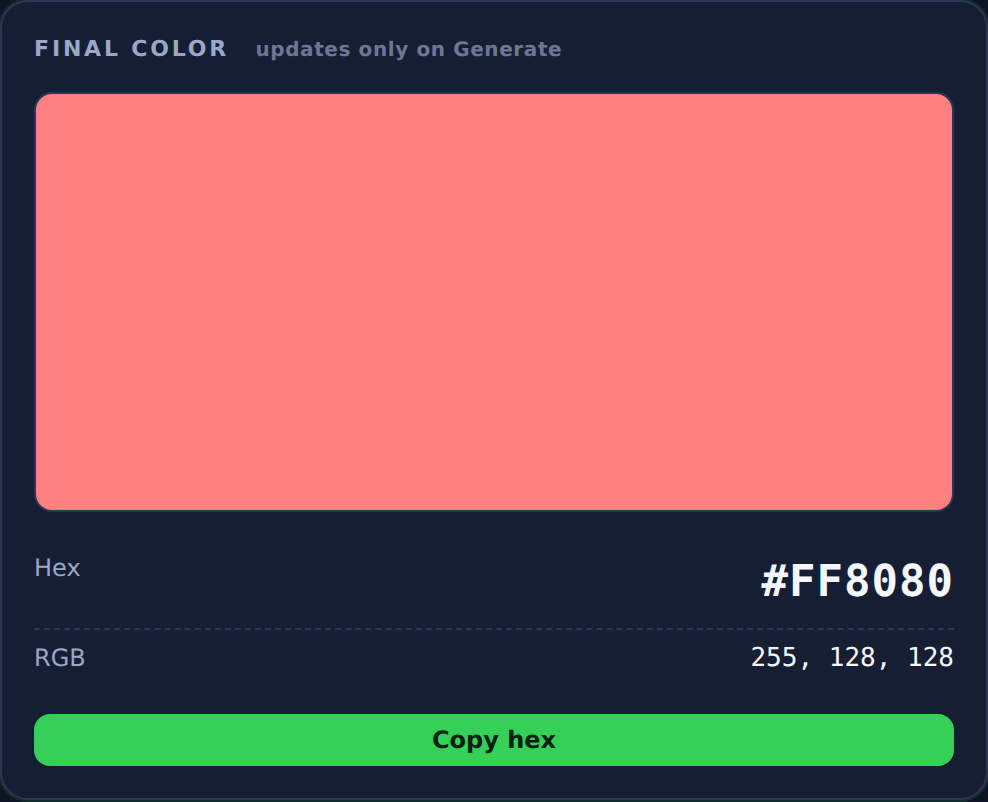
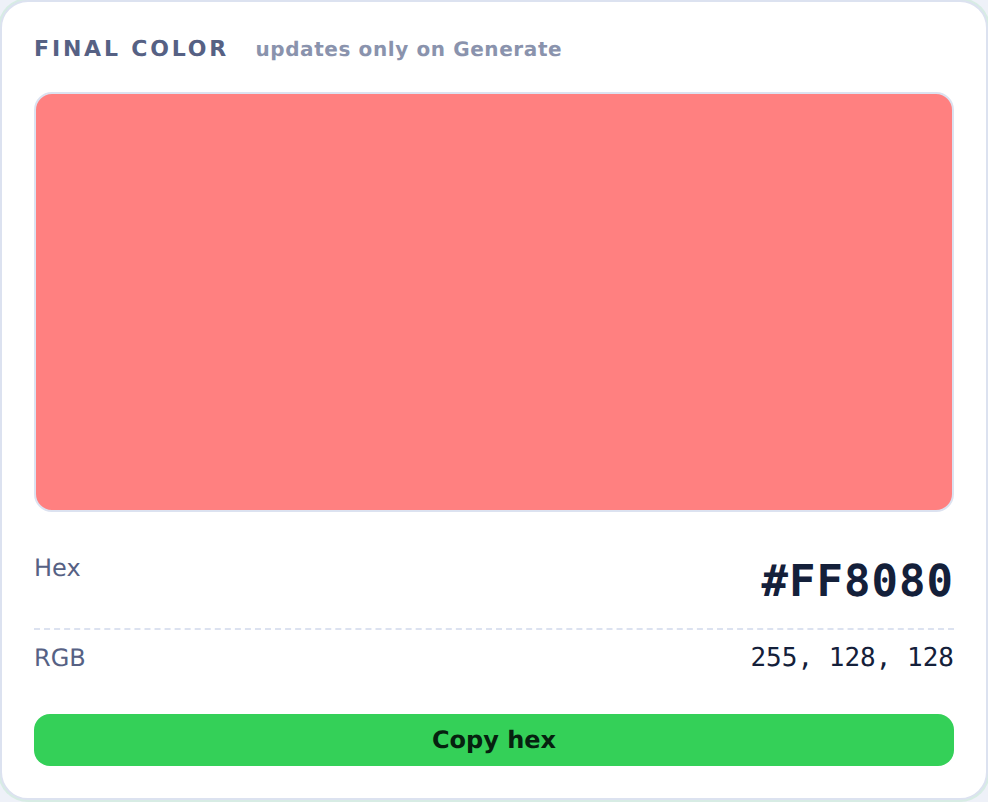
The final panel shows the flattened color, its hex, and its RGB triplet. Nothing updates until you press Generate, so the value you copy is the value you meant.
Works with what you already use
Exchange exact colors between your favorite apps.
If an app has a hex or RGB field, hexIT feeds it the right value. A few of the places people paste hexIT results:
…and any app with a hex or RGB color field.
Quick color pots
Keep your go-to colors one click away
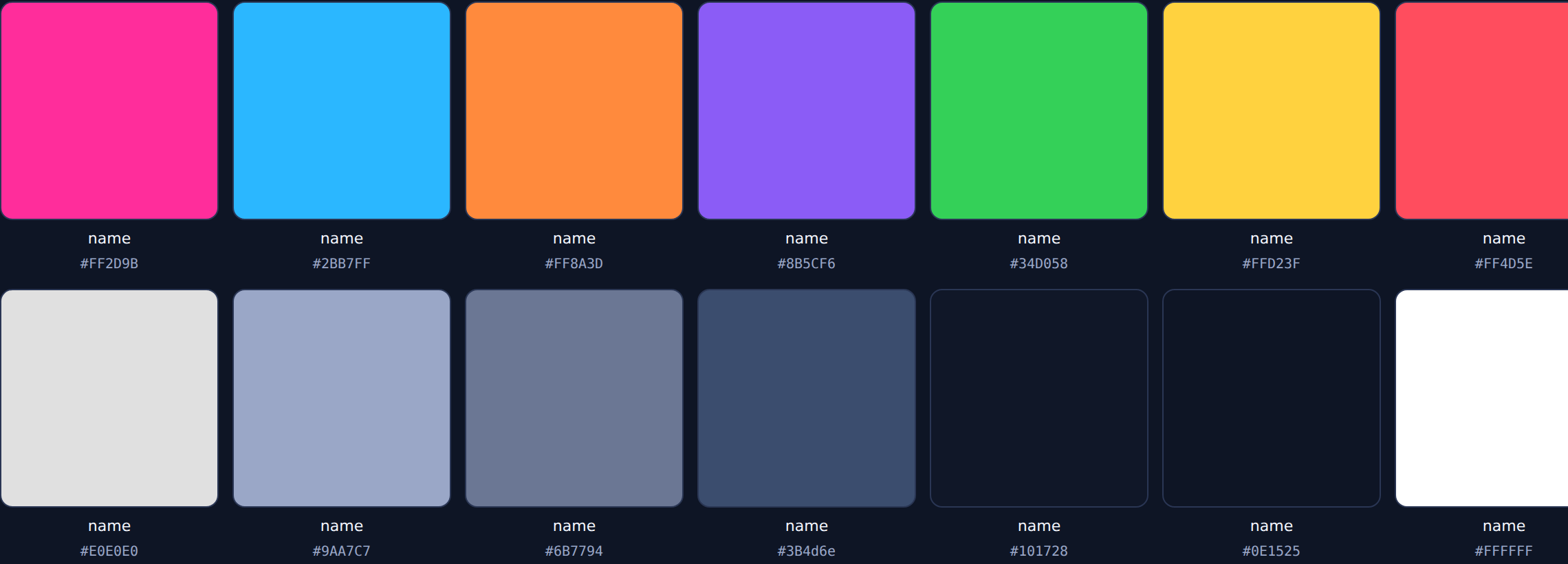
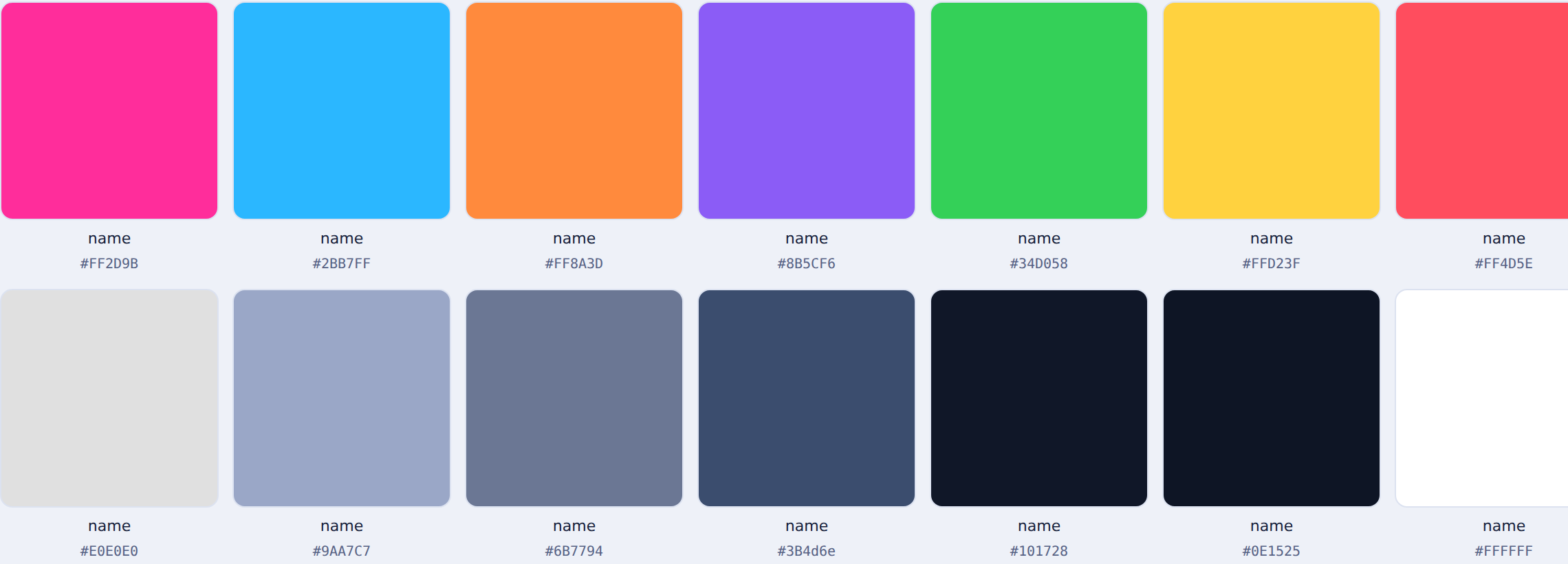
Save the colors you reach for most into named pots with their hex label. Set, rename, reorder, and add your own. Your pots stay on the machine you use.
Color library Pro
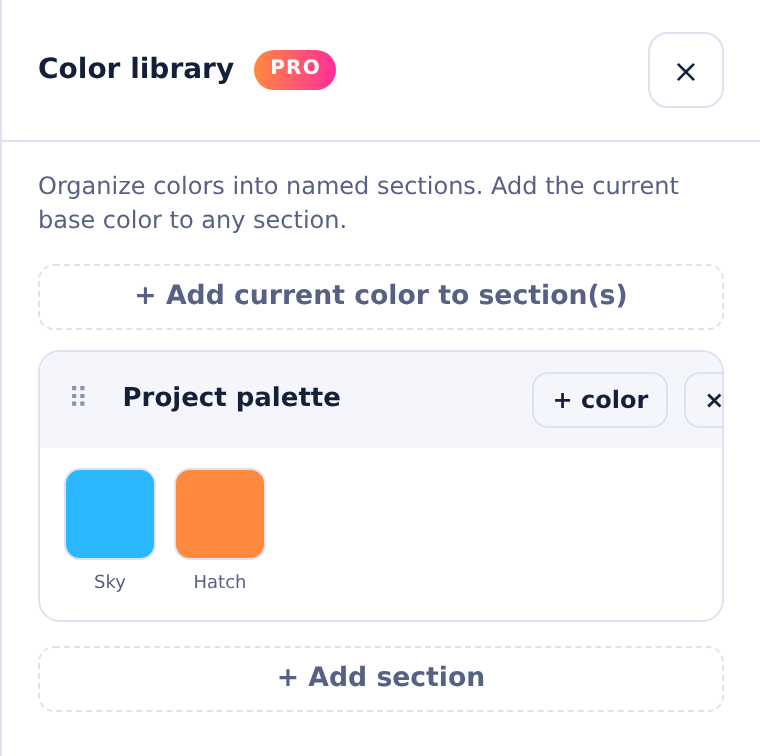
Organize colors into named sections
Group palettes by project or client, name every color, drag to reorder, and export to CSV or TSV. The Color Library is part of hexIT Pro.
See Pro pricing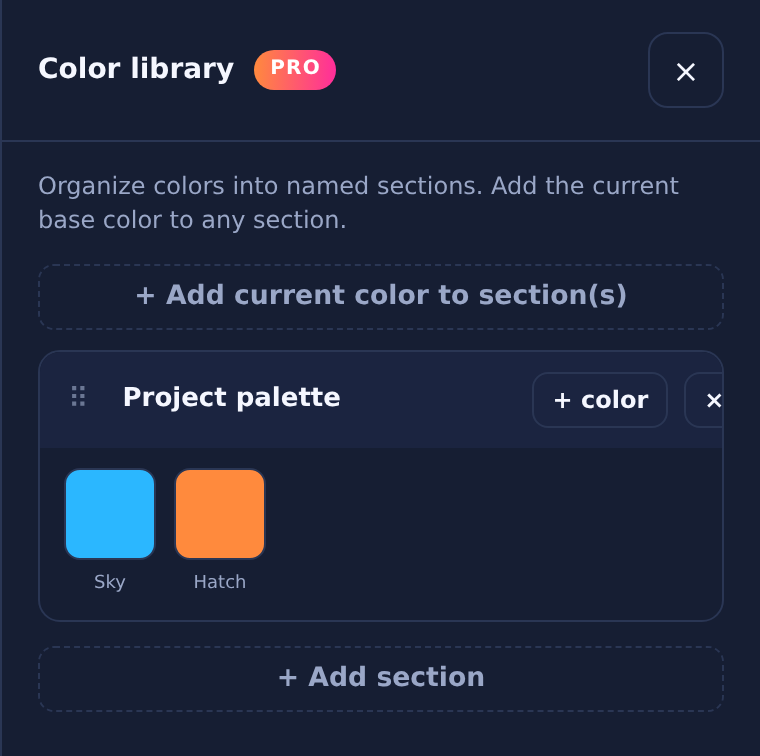
Built to stay out of your way
Installs to your desktop. Runs offline.
One click from the browser
Open hexIT in Chrome or Edge and install it to your Start menu and taskbar. No setup, no account.
Works with no connection
After the first visit, hexIT runs fully offline. Your pots, sections, and settings live on your computer.
Move your work anywhere
Save a .hexIT backup file and restore it on another machine or browser whenever you need to.
Get exact colors
Stop guessing at color. Start matching it.
Open hexIT in your browser and install it to your desktop in one click.